Add a live adjustment
PhotoCraft has 16 adjustment-layer types: Levels, Curves, Brightness/Contrast, Exposure, Vibrance, Hue/Saturation, Color Balance, Black & White, Photo Filter, Channel Mixer, Gradient Map, Selective Color, Invert, Posterize, Threshold and Color Lookup. The same adjustments can also be applied straight to pixels. A layer is the one you can still edit later.
- Add the adjustment as a layer. Use the Layer menu, where Photoshop puts a new adjustment layer, and pick one of the 16 types.
- Edit it while you look. Curves edits per channel. Levels shows a live histogram. Color Lookup reads .cube, .3dl and .look files.
- Limit it with a mask. Paint the adjustment layer's mask, or make a selection first, so the change covers only part of the picture.
- Keep the layered file. Export a PNG or JPEG when you need a flat result. Keep the .pcraft or PSD if you still want the adjustment layer.
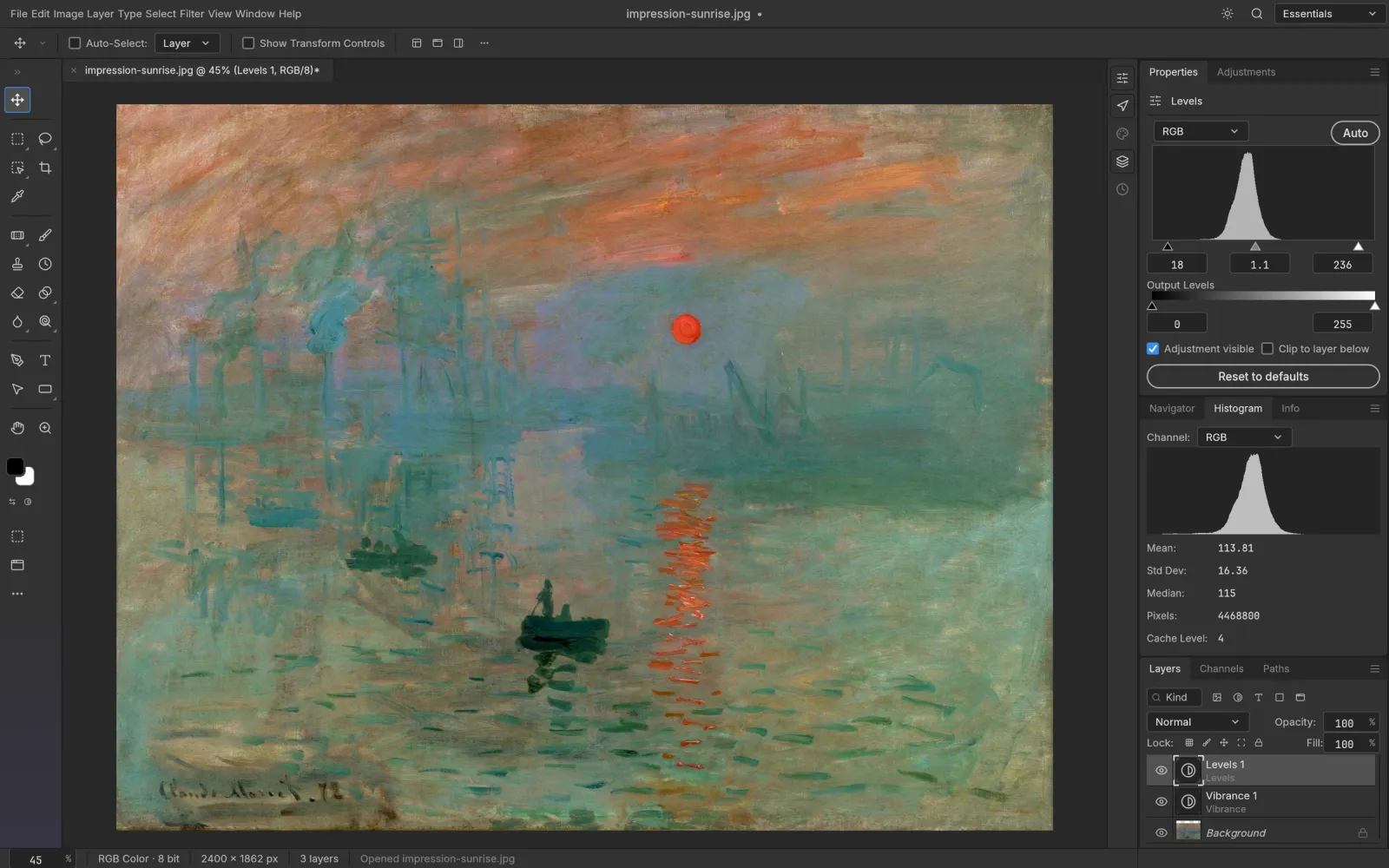
Screenshot from the PhotoCraft repository (docs/images). Artwork in the screenshot is public domain.
Frequently asked questions
Do adjustment layers change the original pixels?
No. They change the composite under them. Delete the layer and the pixels are as they were. Applying the same adjustment directly to a pixel layer does rewrite those pixels.
How many adjustment layers does PhotoCraft have?
16 types: Levels, Curves, Brightness/Contrast, Exposure, Vibrance, Hue/Saturation, Color Balance, Black & White, Photo Filter, Channel Mixer, Gradient Map, Selective Color, Invert, Posterize, Threshold and Color Lookup.
Can I limit an adjustment to part of the photo?
Yes. The adjustment layer has a mask. Paint it, or start from a selection, so only that region changes.