Make a selection
Marquees, the lasso tools and the Magic Wand are the precise tools. Quick Selection, Object Selection and Select Subject trace a region for you. The project says this smart selection runs on your machine, with no cloud account.
- Feather, expand, contract, smooth, grow and reselect are in the selection commands.
- A selection can become a layer mask, a vector path or a shape.
- Select and Mask is in the app. PhotoCraft's own gap list still calls it a simpler dialog than Photoshop's full workspace.
Turn the selection into a mask
- Select the area you want to keep or change. Draw a marquee or lasso, or use Quick Selection, Object Selection or Select Subject.
- Add a layer mask from that selection. Add the mask while the selection is active. The selected area stays visible and the rest of the layer hides. The pixels are still there.
- Paint the mask. Target the mask, then paint black to hide more and white to bring pixels back. Grey is partly visible.
- Check the edge before you export. Use feather, expand, contract or smooth for a small fix. For hair and other fine edges, look at the result: the project's roadmap still marks the cut-out workflow as partial.
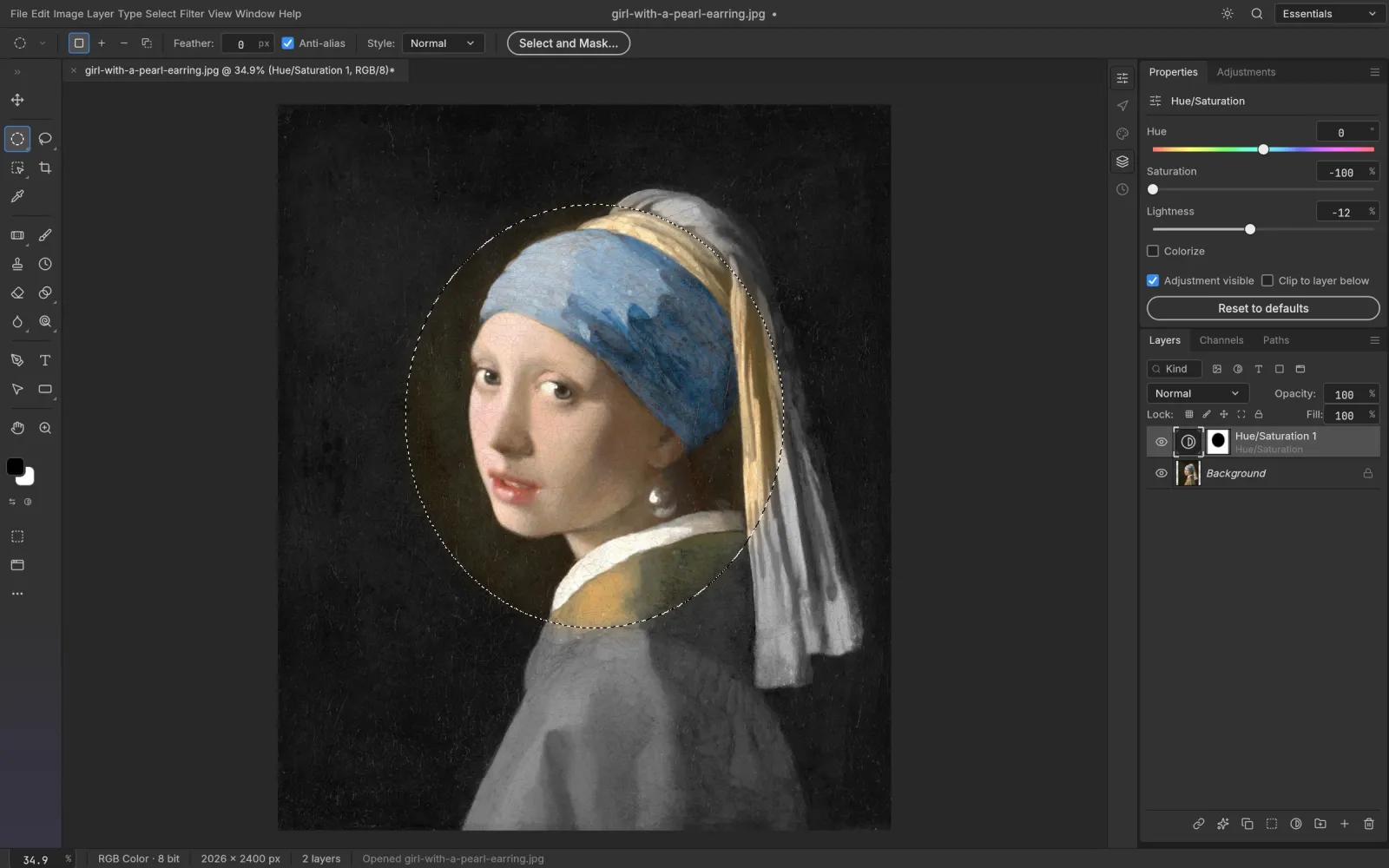
Screenshot from the PhotoCraft repository (docs/images). Artwork in the screenshot is public domain.
Mask an adjustment, not the photo
The usual non-destructive move is an adjustment layer whose mask holds the selection. In the screenshot, Hue/Saturation is masked to an ellipse and everything outside the face goes gray. The photograph's pixels are unchanged.
Frequently asked questions
Does Select Subject need an account?
No. PhotoCraft says Select Subject, Object Selection and Quick Selection run on your machine. There is no cloud step.
Does a layer mask delete pixels?
No. Black hides and white shows. Delete the mask and the layer's pixels are as they were.
Is Select and Mask the same as in Photoshop?
It is in the app, and PhotoCraft's gap list still describes it as a simpler dialog, not Photoshop's full workspace.