Type on the picture
Press T for the Type tool. The options bar shows the font, the weight, the size in points and the anti-alias setting. On the 0.8.2 web build those started as Inter, Regular and Smooth. Click the photo and type. The sample reads NORTH RIDGE.
- Select the Type tool. Press T. The options bar switches from the previous tool to font, weight, point size and anti-alias.
- Set the point size. Click the size in the options bar and type a larger number if the default is too small at the current zoom. The size is in points.
- Click and type. Click the picture, then type. The words appear on the photo while the type options stay in the bar.
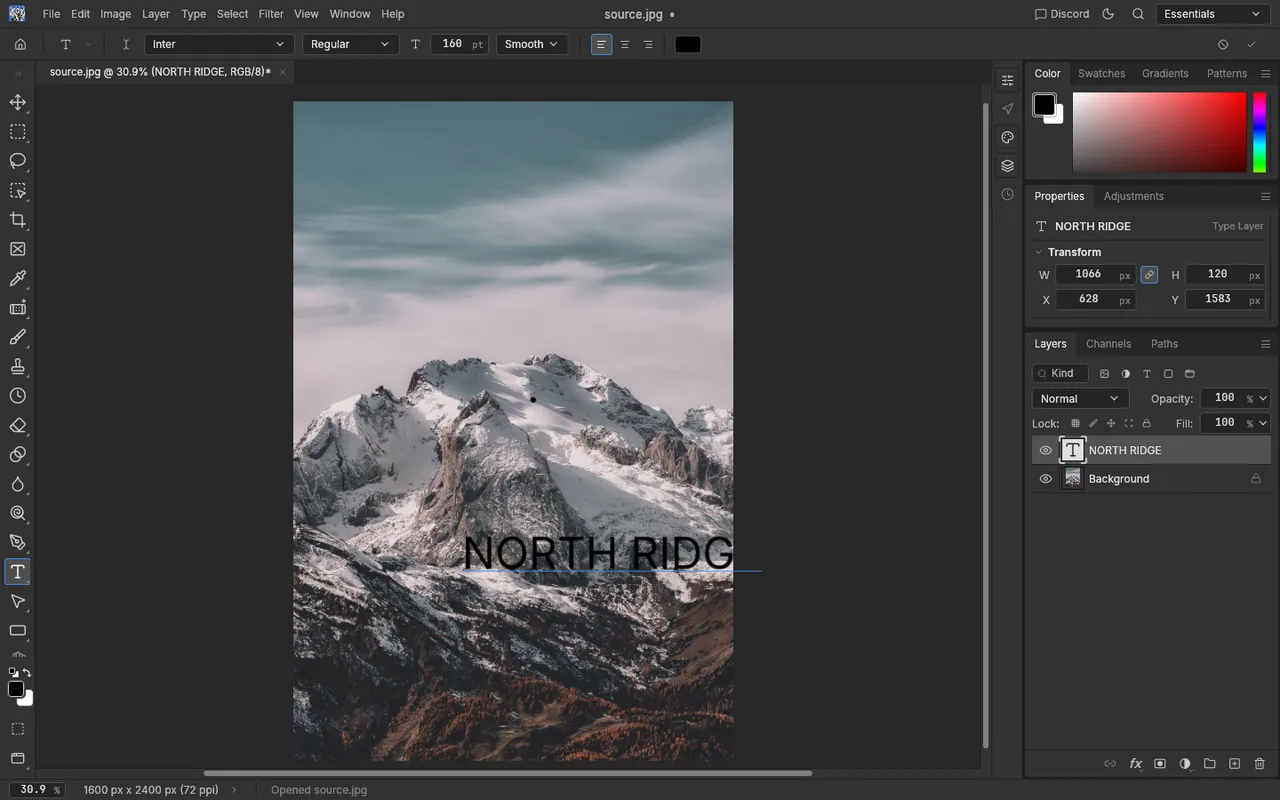
PhotoCraft 0.8.2 web build, running in the browser. Sample photo by Eberhard Grossgasteiger on Pexels.
The words stay a type layer
The Type menu includes Rasterize Type Layer. Until you use that, the words are still text: select the Type tool and click them to edit. A brush or a filter that needs pixels wants the rasterize command first. Free Transform can scale or rotate the type layer after you leave this edit.
Frequently asked questions
Why can't a brush paint on the letters?
They are still a type layer. Type › Rasterize Type Layer turns them into pixels. After that, the words are not editable as text.
The words are too small.
The size field is in points, and the canvas may be zoomed out. Raise the point size in the options bar before you click the photo, or while the text is still editing.
Does this work in the browser?
Yes. These steps were done in the PhotoCraft 0.8.2 web build. The desktop app uses the same Type tool and the same options bar.