Unlock the Background layer
File › Open on a JPEG makes a Background layer. Edit › Free Transform did nothing on that layer. Layer › New › Layer from Background turns it into a normal layer. After that, Free Transform draws a box and the options bar shows X, Y, W, H, a rotation and Interpolation.
- Open the photo. Choose File › Open. Check the Layers panel: a flat JPEG is named Background.
- Make it a normal layer. Choose Layer › New › Layer from Background. Confirm the dialog if PhotoCraft asks for a name.
- Start Free Transform. Choose Edit › Free Transform. The options bar on this build showed Interpolation set to Bicubic, with fields for position, scale and angle.
Drag to scale or rotate
Drag a corner handle to scale the layer. Drag outside the box to rotate it. While the box is up, the options bar reads the angle. On the sample that readout was 13.7°. Enter applies the transform. Escape drops the box and leaves the layer where it was. Edit › Transform, next to Free Transform, is the menu for the fixed turns.
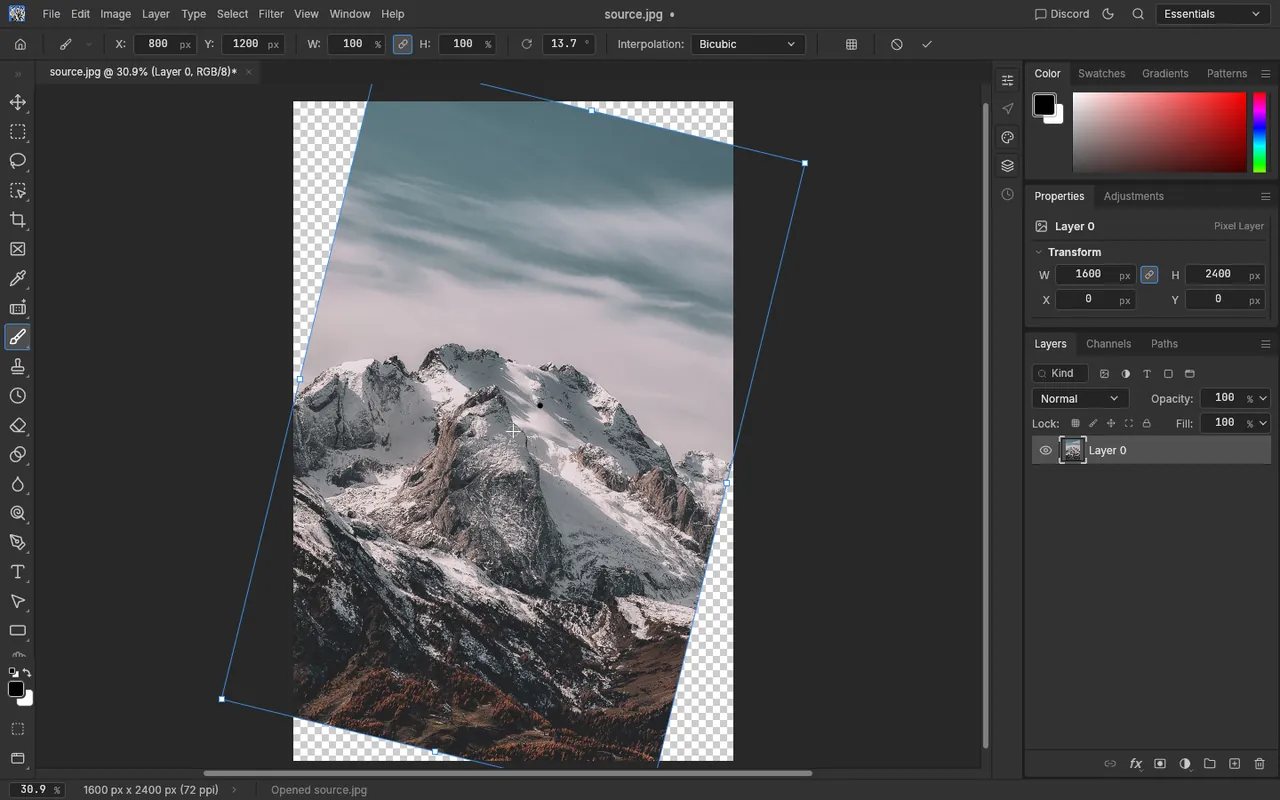
PhotoCraft 0.8.2 web build, running in the browser. Sample photo by Eberhard Grossgasteiger on Pexels.
Frequently asked questions
Why does Free Transform do nothing?
The layer is still Background. Choose Layer › New › Layer from Background, then Edit › Free Transform again.
Does this resize the whole document?
No. The canvas stays the same size and the layer moves inside it. Use Image Size when you want new document dimensions, and the Crop tool when you want to cut the canvas.
Can I set an exact angle?
The options bar shows the angle while you drag, in degrees. For a quarter turn or a flip, use Edit › Transform beside Free Transform.