Crop to a ratio
Press C for the Crop tool. The Ratio menu in the options bar lists Original Ratio, 1:1 (Square), 4:5 (8:10), 5:7, 2:3 (4:6) and 16:9, plus a few print and screen presets. 4:5 is a tall post, 1:1 is a square, and 16:9 is a wide frame. Delete Cropped Pixels sits on the same bar.
- Open the photo. Choose File › Open. A JPEG opens as a Background layer. The sample here is 1600 × 2400 px.
- Choose the Crop tool. Press C. This is the Crop tool, not Image › Crop. The options bar shows Ratio and Delete Cropped Pixels.
- Pick 4:5. Open Ratio and choose 4:5 (8:10). The frame keeps that shape. Drag inside the frame to move it over the picture.
- Commit the crop. Press Enter. Escape cancels and leaves the pixels alone. On the sample, 1600 × 2400 became 1600 × 2000, which is 4:5.
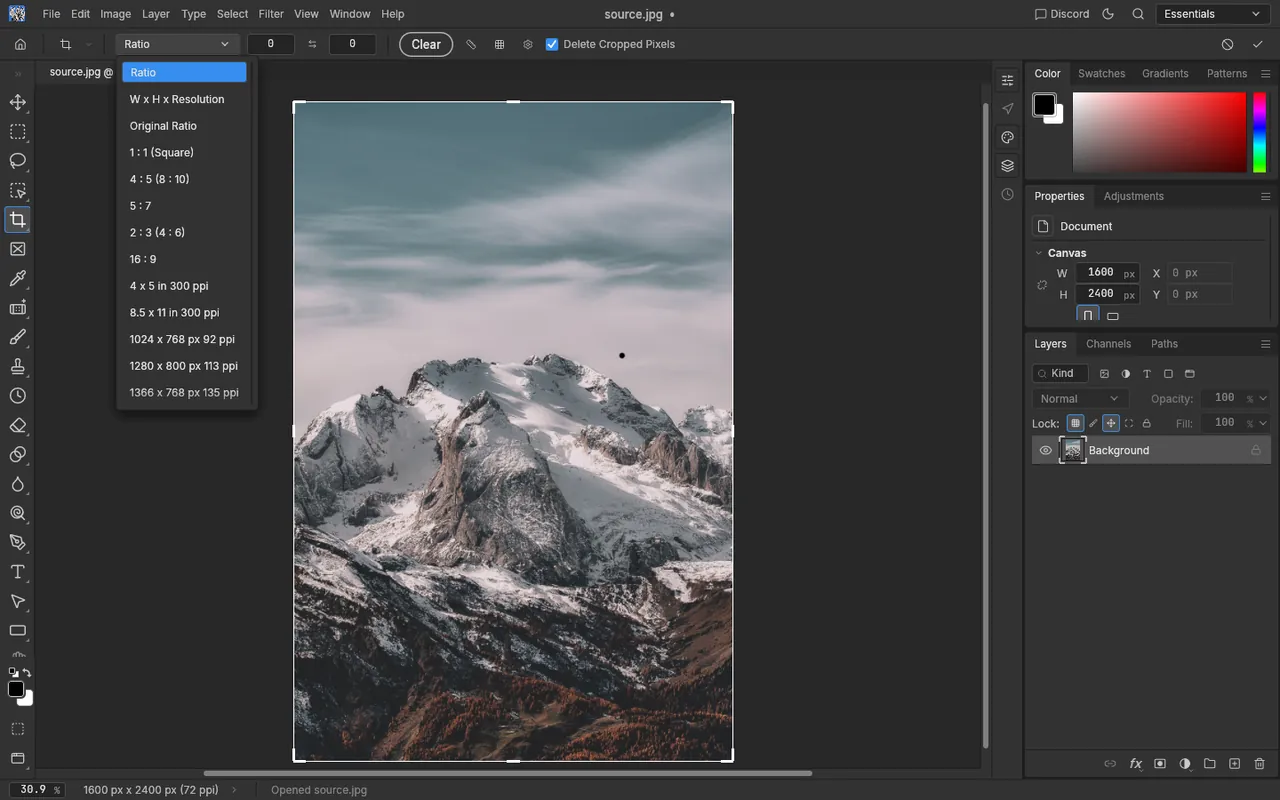
PhotoCraft 0.8.2 web build, running in the browser. Sample photo by Eberhard Grossgasteiger on Pexels.
Set the pixel size
Image › Image Size resamples this document. Width and Height stay linked, so a new width sets the height. On this build the dialog showed 72 pixels per inch and Resample set to Automatic. After the 4:5 crop, a Width of 1080 px showed a Height of 1350 px before it was confirmed.
- Open Image Size. Choose Image › Image Size, or press Ctrl+Alt+I.
- Type the width. Click Width and type 1080. Height follows while the two fields are linked. The Dimensions line updates before you confirm.
- Apply. Press Enter. That changes the open document. Export As, in the open-and-save lesson, writes a flattened copy instead.
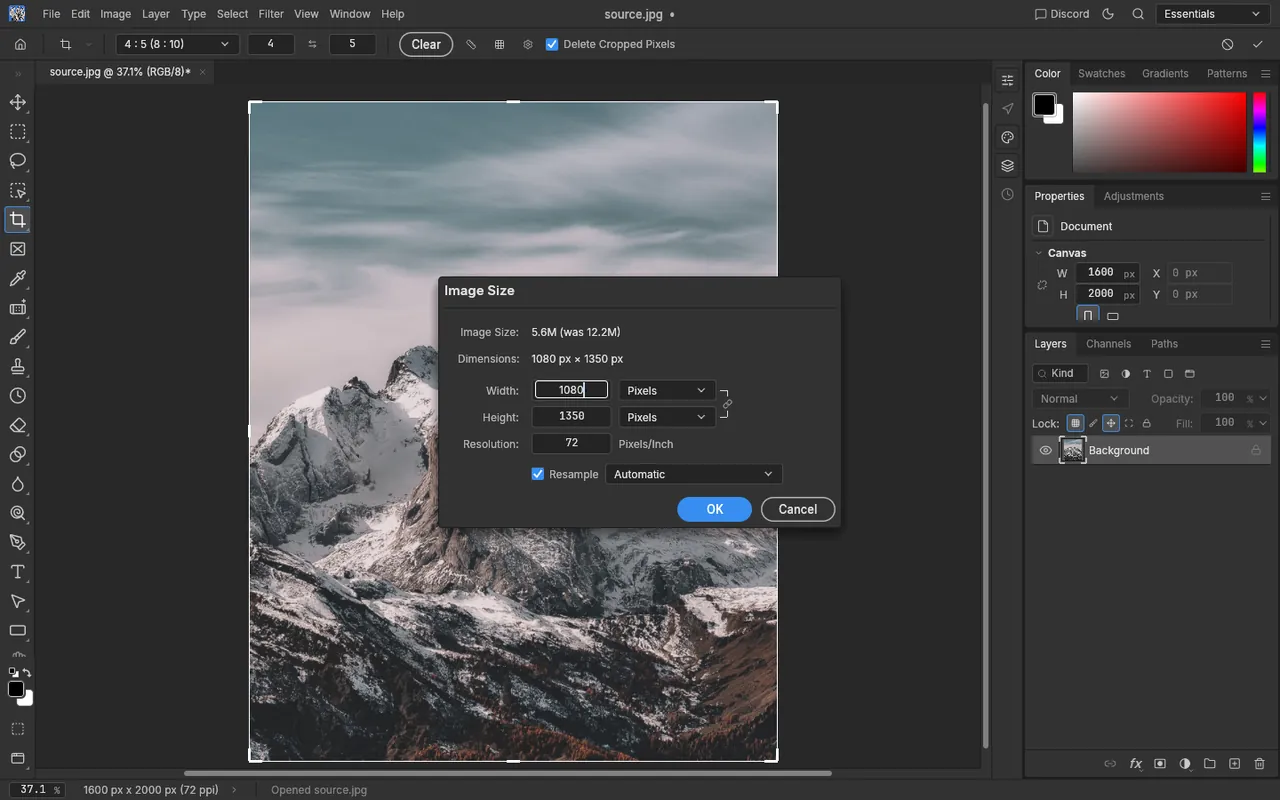
PhotoCraft 0.8.2 web build, running in the browser. Sample photo by Eberhard Grossgasteiger on Pexels.
Frequently asked questions
Does the crop throw away the edges?
Delete Cropped Pixels is on the Crop tool's options bar. When it is on, Enter keeps only the frame. The sample went from 1600 × 2400 to 1600 × 2000.
Is Image Size the same as Export As?
No. Image Size resamples the open document. Export As writes a flattened file and leaves those pixels as they are. The open-and-save lesson covers Export As.
Which ratio should a post use?
Use 1:1 for a square, 4:5 for a tall post and 16:9 for a wide frame. Then set Width in Image Size to the pixel size that destination asks for.