Where the command is
In PhotoCraft 0.8.2, unlock the pixel layer before Quick Actions will list its buttons. A locked layer, or a layer with its pixels locked, keeps that section empty. A Background layer is locked, and its Properties panel shows the document. Turn it into a normal layer, then open Window › Properties and use Quick Actions › Remove Background. Select Subject is the other button in that section. The v0.5.0 release notes called this command Layer › Remove Background; this version keeps it as the Quick Action button.
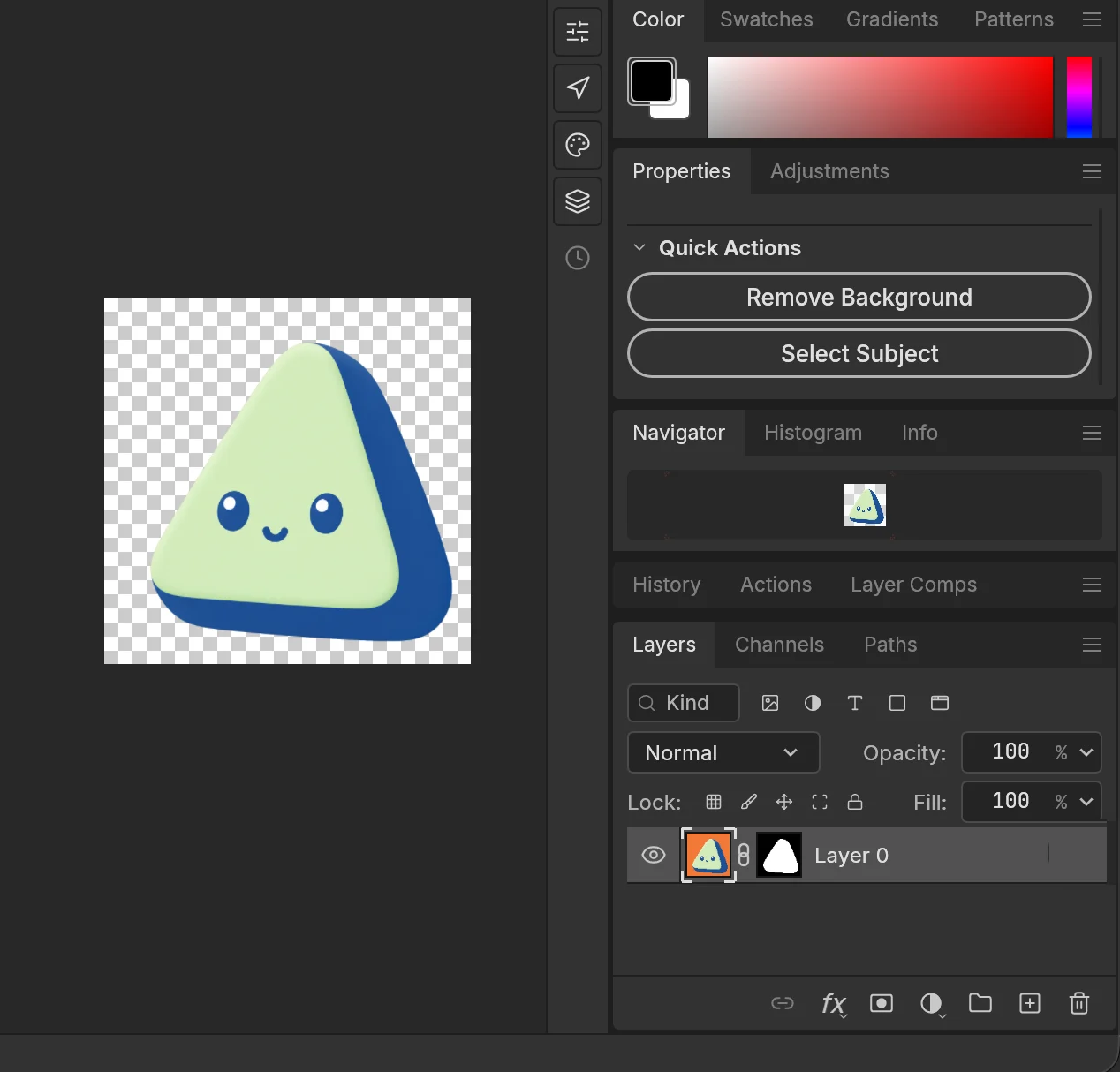
Screenshot of PhotoCraft 0.8.2.
Cut out the subject
- Unlock the layer. In the Layers panel, double-click a Background layer, or choose Layer › New › Layer from Background. PhotoCraft names it Layer 0 and clears its locks. On a normal pixel layer, turn off Lock all and Lock image pixels in the Lock row. Quick Actions lists its buttons after that. Type, shape, smart object, group, fill and adjustment layers do not show them.
- Click Remove Background. Open Window › Properties and scroll to Quick Actions. The command looks at the selected layer only. It does not sample the layers underneath.
- Read the mask. PhotoCraft finds the subject, refines the edge, and adds one layer mask. The subject stays visible and the rest of the layer is hidden. The pixels are not deleted. A selection that was active is cleared.
- Undo, or run it again. The history step is named Remove Background. Undo takes the mask off. Redo puts it back. Clicking the button again replaces that mask. It does not stack a second one.
When the layer is the Background
A Background layer cannot hold a mask, and its Properties panel shows the document. Unlock it first. PhotoCraft turns it into a normal layer named Layer 0, with transparency and position unlocked. Quick Actions then lists Remove Background, and the button adds the mask. Any other layer keeps its name.
Frequently asked questions
Does Remove Background delete the pixels?
No. It adds a layer mask. Undo, or deleting the mask, leaves the pixels as they were.
Does the photo leave my computer?
No. It uses the same on-device subject selection as Select Subject. There is no account and no cloud step.
Where did Layer › Remove Background go?
In PhotoCraft 0.8.2 the command is the Remove Background button under Properties › Quick Actions. The Layer menu entry named in the v0.5.0 notes is not in this version.
The button is missing. What should I check?
Unlock the layer first. Double-click a Background layer, or turn off Lock all and Lock image pixels. Then open Window › Properties and look under Quick Actions.